Set Corasom up on their tablet, phone or laptop
By the end
Corasom opens from an icon on their home screen, and you’ve seen their first check-in.
Not with them? Follow Set it up from a distance instead.
Before you start
- Their tablet, phone or laptop, charged and online.
- An email address they can open on that device. Corasom sends them a six-digit code instead of using a password.
- Your invitation, sent from Create your account and invite them.
- Time with them, if you can manage it. It’s their app, so let them do the tapping.
There’s nothing to install. Corasom runs in the web browser the device already has.
Steps
-
Open the invitation on their device. Tap the link in the invitation email. If Corasom asks how they’ll use it, they choose Someone cares for me.
-
Sign in with the code. Corasom emails them a six-digit code. Open their email, find the message from Corasom, and type the code in. If it hasn’t arrived after a minute, ask for a new one.
-
Read the welcome screen together. It explains that Corasom is not a medical device or an emergency service, and that in an emergency they should ring their local emergency number. They tap I understand. They only need to do this once.
-
Put Corasom on their home screen, so it opens with one tap, like any other app. The icon may look plain for now.
- iPad or iPhone: in Safari, tap the Share button (a square with an arrow pointing up), then Add to Home Screen, then Add.
- Android: in Chrome, tap the menu (three dots), then Add to Home screen or Install app.
- Laptop or computer: add a bookmark to the browser’s bookmarks bar.
-
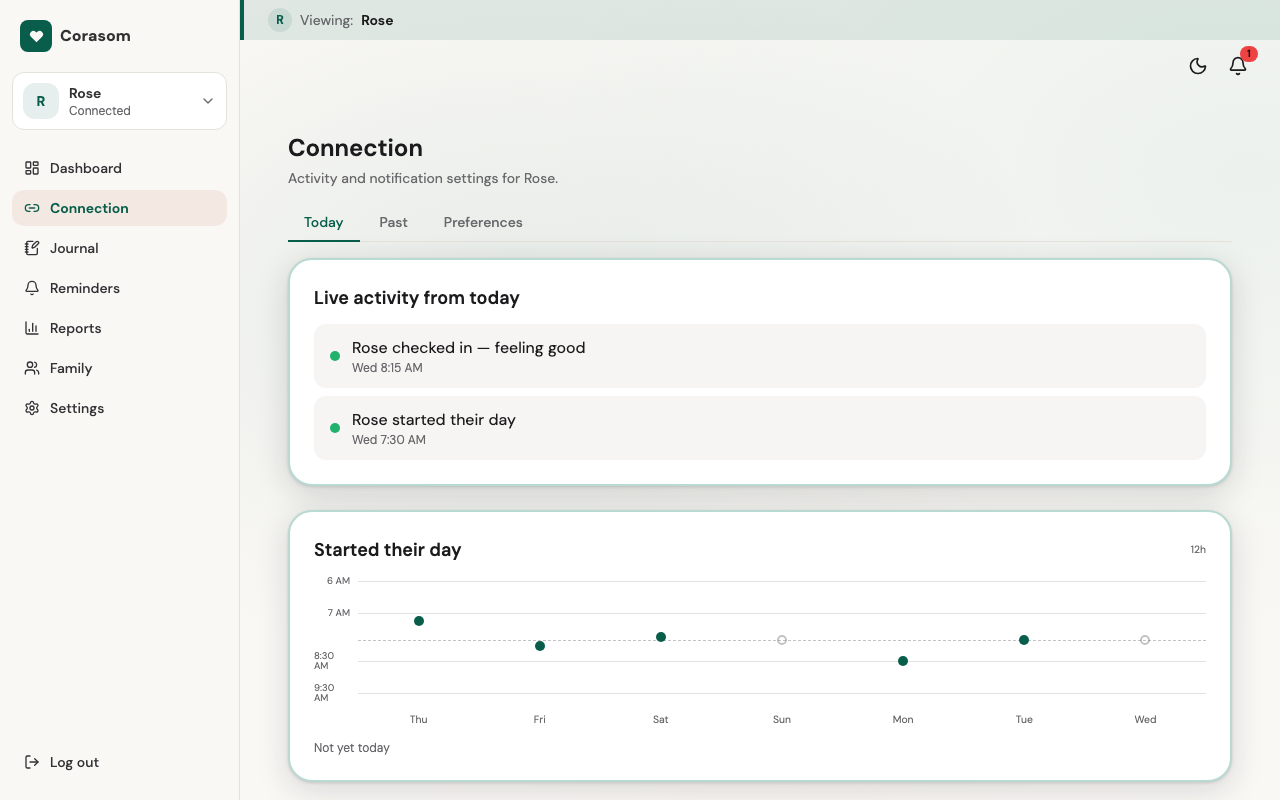
Make the first check-in. Ask them to tap the big I’m OK button. Moments later, “Checked in” appears on your screen. You’re connected.
Setup checklist
Print this guide and tick things off as you go.
- Device charged and online
- Their email opens on this device
- Invitation opened
- Signed in with the six-digit code
- Welcome screen read, and I understand tapped
- Corasom icon on the home screen
- First I’m OK showing on your screen
If something’s not right
- The code email hasn’t arrived: check junk, spam and, in Gmail, the Promotions tab. Then ask for a new code.
- “This invitation can’t be used”: it has run out or already been used. Invitations last 48 hours, so send a new one.
- More fixes are in Fix sign-in problems.
Try it in the demo (opens in a new tab)
Last checked 14 October 2026 · Still stuck? Email [email protected] and a person will answer.