Plan their daily routine together
By the end
Their routine has the things that matter to them, at the right times, and they’ve agreed to each one.
Their routine is a short list for the day: meals, a drink of water, a walk, their tablets. You suggest what goes on it, and they decide. They see their day in time order, with a big button to mark each thing done. You see each tick as it happens.
Before you start
- A quick chat with them about what goes on the list. It’s their routine, so it works best when they’ve chosen it.
- For tablets: when they take them, and how many times a day.
Steps
-
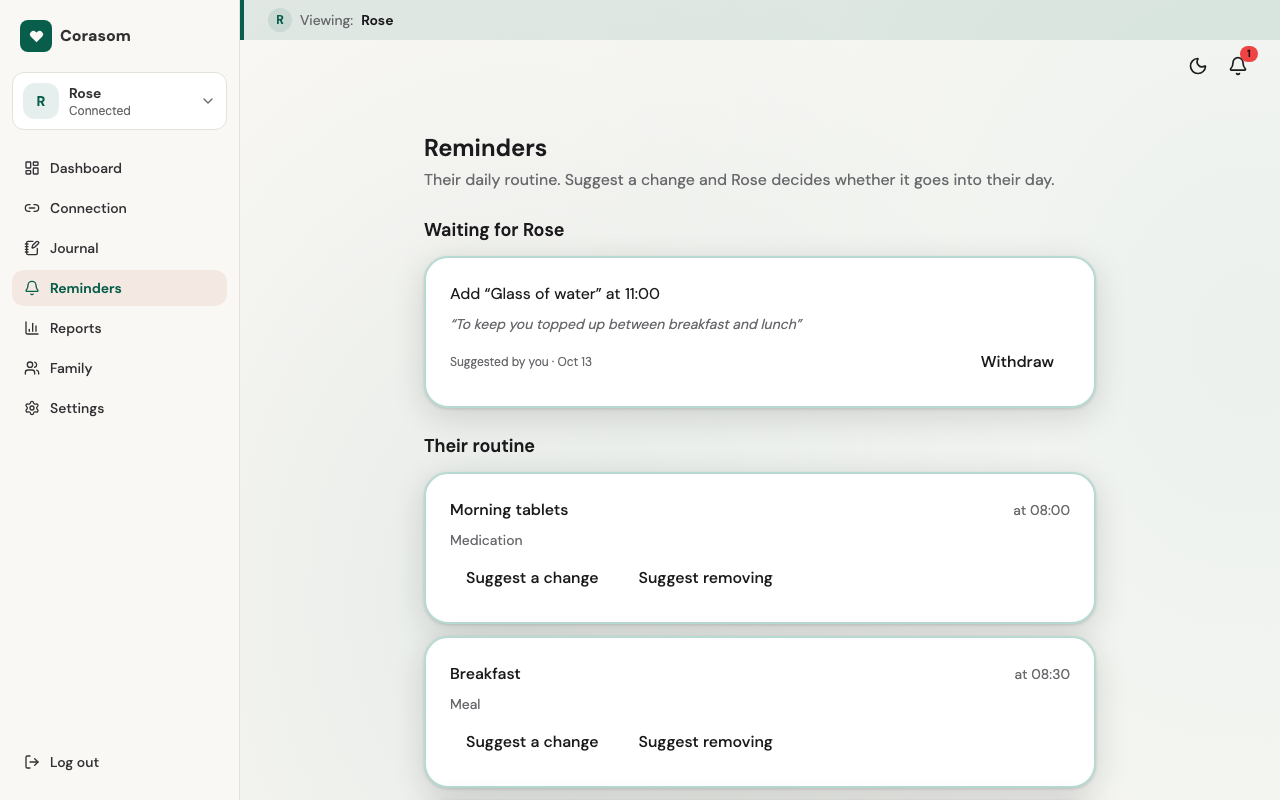
Open Reminders from your dashboard’s menu. It shows their routine for today.
-
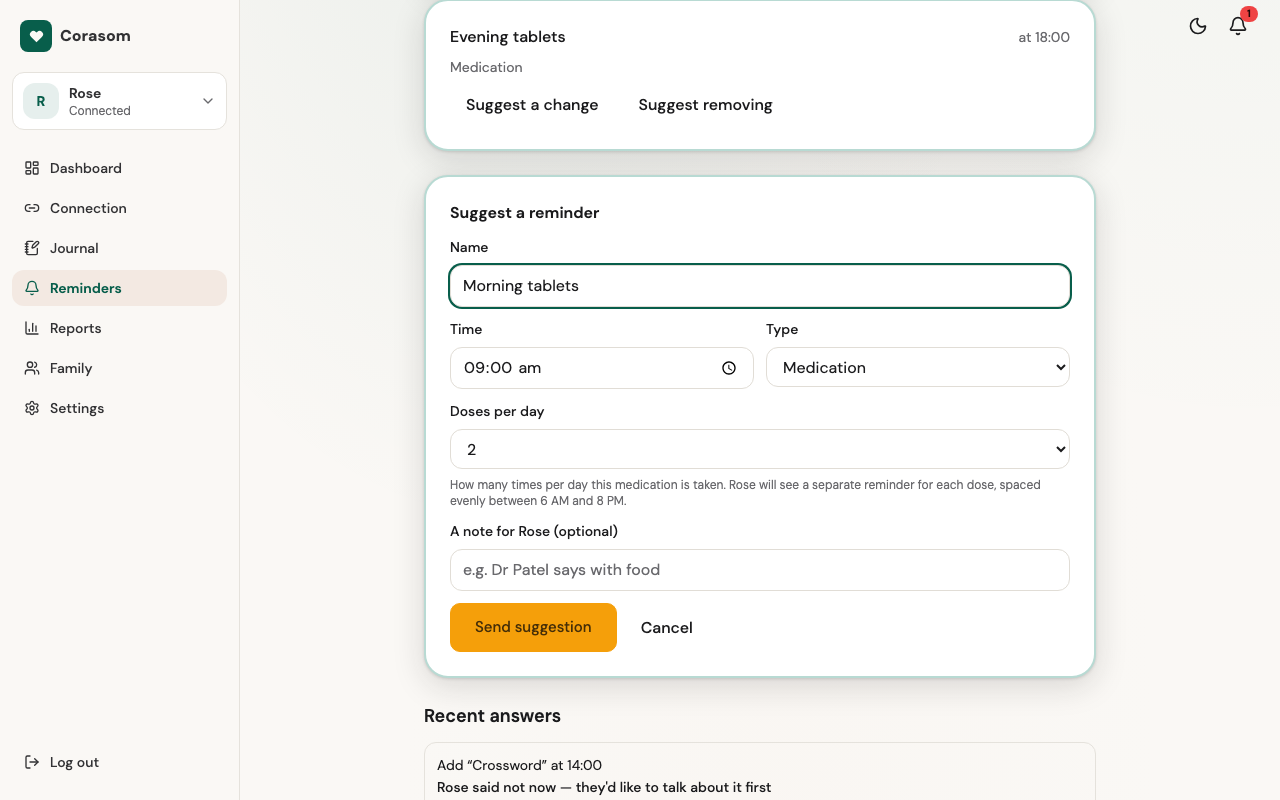
Suggest a reminder. Give it a short name, such as “Breakfast” or “Morning tablets”, choose a time, and pick a type: Meal, Drink, Walk, Medication or Other.
-
For tablets, set the doses per day. Choose from one to four. If it’s more than one, Corasom spreads the doses across their day, and each dose shows as its own item.
-
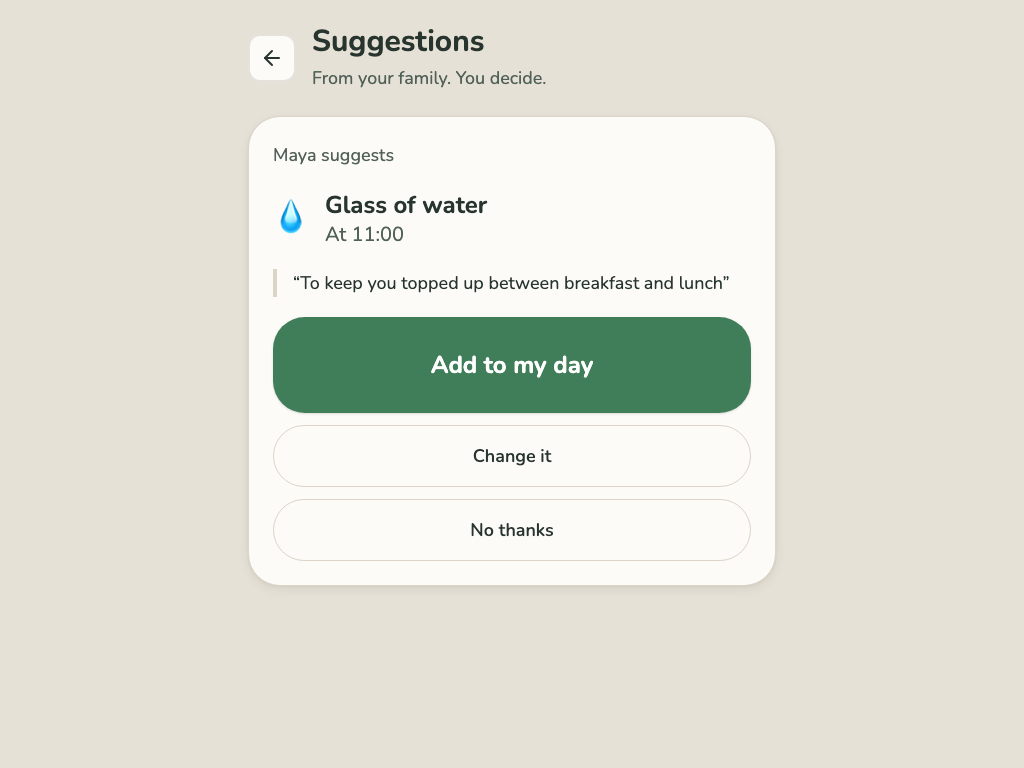
They decide. Your suggestion waits on their screen under Suggestions. They can choose Add to my day, change it, or say No thanks, with a reason if they like. Their answer shows on your Reminders page.
-
Changing or stopping an item. On Reminders, suggest a change, or suggest removing it. They decide on those too, and they can change their own reminders whenever they like.
-
See their side. Their list shows the day in time order. Ticking off your day is their guide to it.
Who can do what
- Ticking off: only they can tick things off, on their own screen. You see each tick as it happens.
- Changes: only they can change their routine. You, and anyone else in the circle, can suggest changes.
Keep their usual alarm for now. Their routine is there whenever they open Corasom, but it doesn’t ring or buzz to remind them yet. If they rely on a phone alarm for their tablets, keep it.
If something’s not right
- Your suggestion isn’t in their routine: they haven’t answered yet, or they’ve said no thanks. Their answer shows on your Reminders page.
- Tablets show as not taken: they’re only marked when they tap Taken on their screen.
Click through it
Building their routine
Open Reminders from your dashboard's menu.
-
1. Open Reminders from your dashboard's menu. -
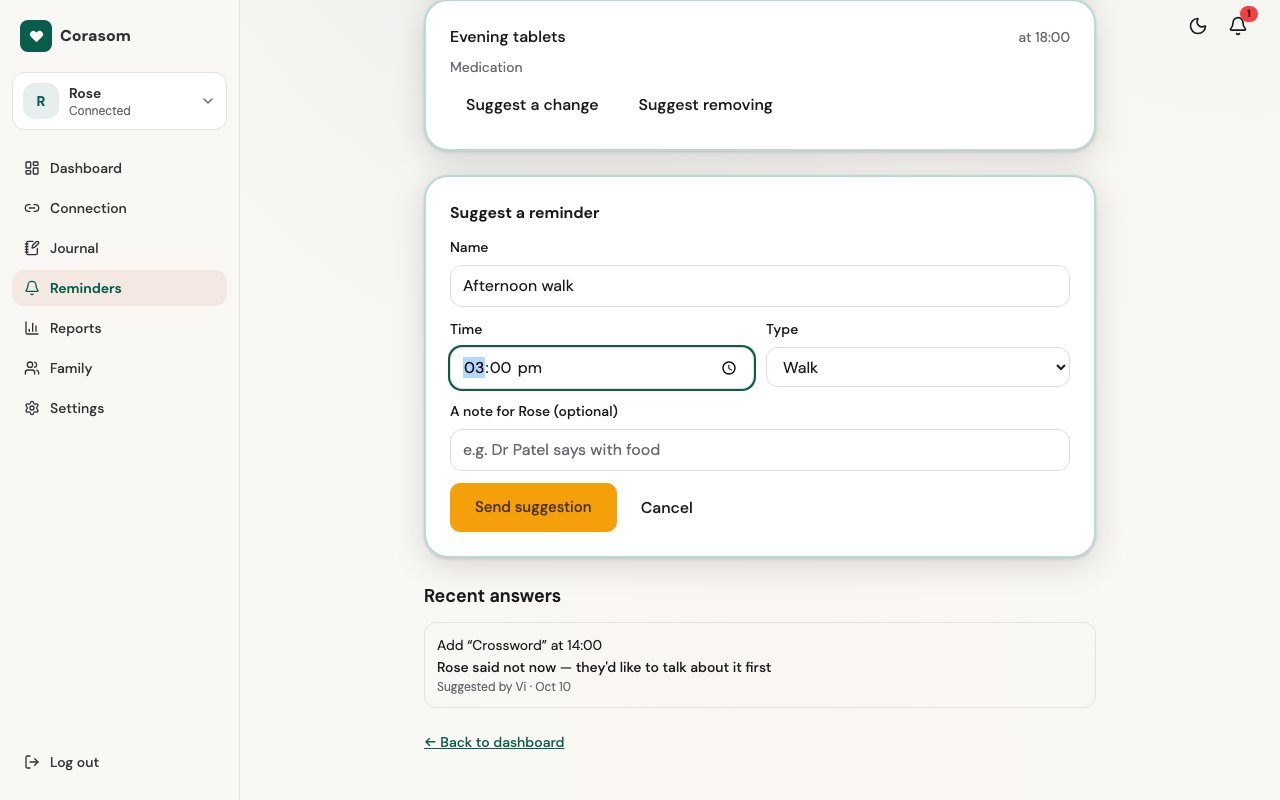
2. Suggest a reminder: a name, a time and a type. -
3. For tablets, choose how many times a day. -
4. They choose Add to my day, or No thanks. -
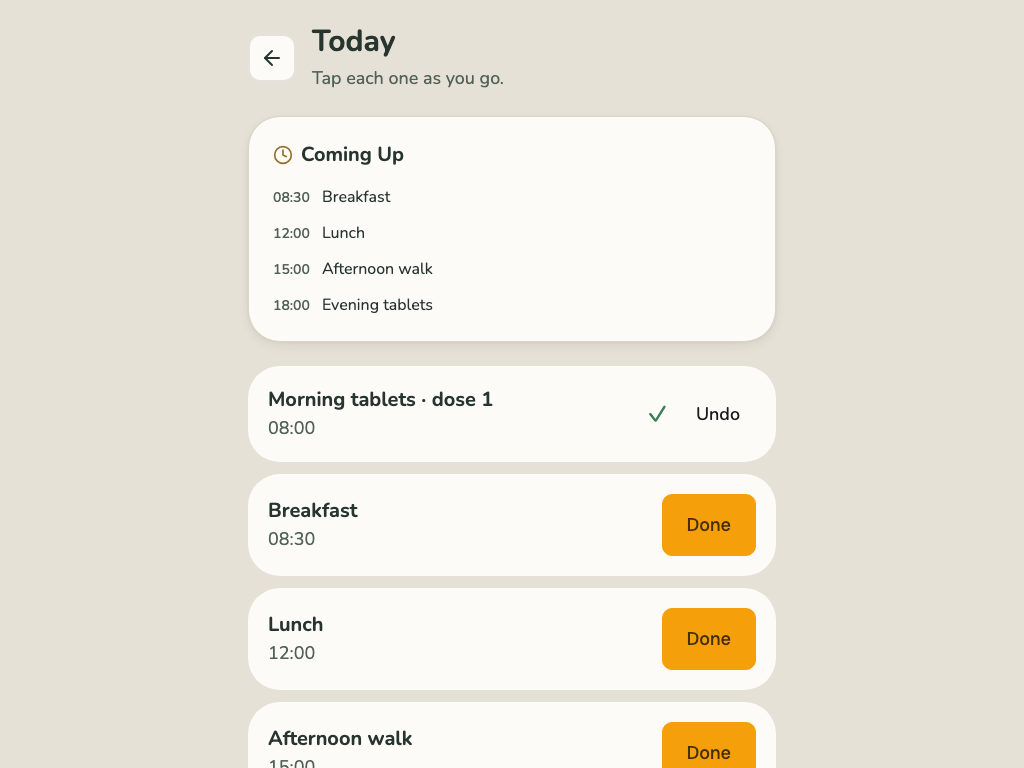
5. Their side shows the day in time order.
Try it in the demo (opens in a new tab)
Last checked 14 October 2026 · Still stuck? Email [email protected] and a person will answer.